iOS SDK
Add the livechat.ae chat to your iPhone and iPad app. The users of your app chat with your team exactly like the visitors of your website: same agents, same settings, pre-chat and post-chat forms, departments, languages, knowledge base, attachments and ratings.
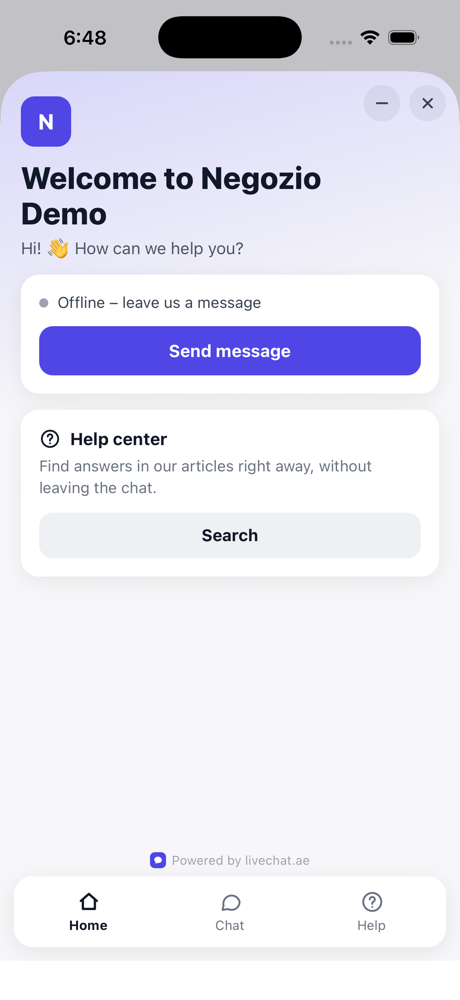
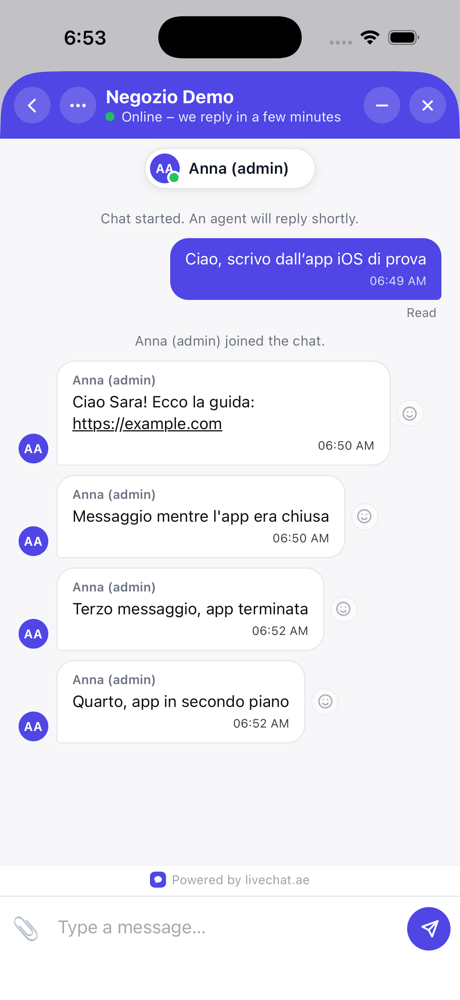
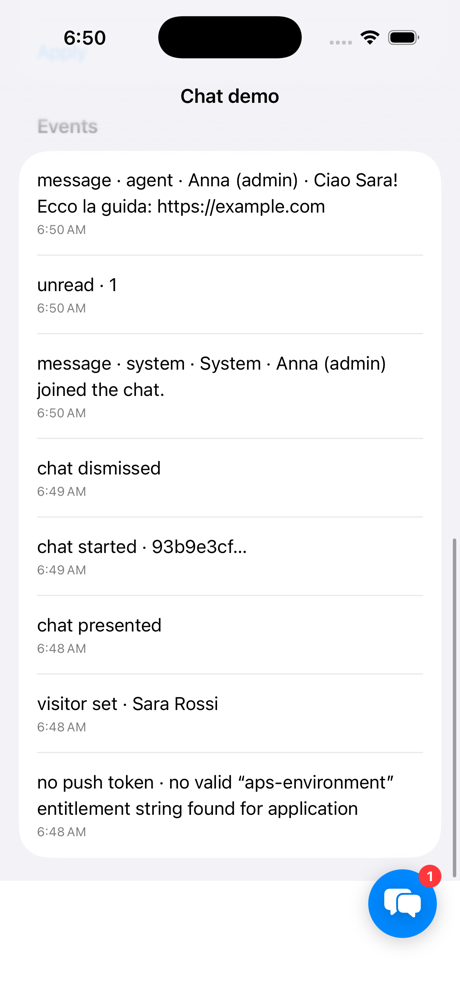
- Swift, UIKit and SwiftUI, iPhone and iPad
- One line to set up, one line to open the chat, a ready-made chat button with the unread badge
- Visitor name, email, custom fields and identity token from your app
- Events: new message, unread count, chat opened and closed, conversation started and ended, errors
- Push notifications when the app is closed, sent by your server through the chat.agent_message webhook
Requirements
- iOS 15.0 or later (iPhone and iPad), Xcode 15+ and Swift 5.9+
- A livechat.ae account and its widget key: the same
data-keyas in the website snippet, in Administration → Installation
Installation
Swift Package Manager
In Xcode choose File → Add Package Dependencies…, enter https://github.com/gatehillsreg/livechat-ios-sdk and add the LiveChatAE library to your app target. In a Package.swift:
dependencies: [
    .package(url: "https://github.com/gatehillsreg/livechat-ios-sdk.git", from: "1.0.0")
],
targets: [
    .target(name: "YourApp", dependencies: [.product(name: "LiveChatAE", package: "livechat-ios-sdk")])
]
CocoaPods
The pod is installed from the same repository:
pod 'LiveChatAE', :git => 'https://github.com/gatehillsreg/livechat-ios-sdk.git', :tag => '1.0.0'Quick start
Configure the SDK once at launch. The chat loads in the background, so messages and the unread count arrive even before the user opens it.
import LiveChatAE

// UIKit: in application(_:didFinishLaunchingWithOptions:)
// SwiftUI: in the init() of your App
LiveChatAE.configure(key: "YOUR-WIDGET-KEY")
Open the chat from anywhere:
LiveChatAE.present()                 // from the top-most view controller
LiveChatAE.present(from: self)       // or from a view controller of yours
LiveChatAE.dismiss()                 // close it from code
Or drop in the ready-made button, with the unread badge:
// SwiftUI
SomeView()
    .overlay(alignment: .bottomTrailing) { LiveChatAEChatButton().padding() }

// UIKit: 60×60 points, uses the tint color (or set button.color)
let button = LiveChatAEButton()
view.addSubview(button)
The chat opens as a sheet (a centered window on iPad); LiveChatAE.presentationStyle = .fullScreen opens it full screen. The visitor closes it with the – button in its header or by swiping it down: the conversation goes on, and new messages keep arriving and are counted as unread.
Configuration
LiveChatAE.configure(
    key: "YOUR-WIDGET-KEY",
    language: "it",              // it, en, es, fr, de, ar, ru. Default: your account's language, then the device's
    department: "Sales"          // department for new chats. Default: the visitor chooses
)

LiveChatAE.setDepartment("Support")  // change it later, for the next chats
Calling configure again with different values reloads the chat.
The signed-in user
If your app knows who the user is, pass it on: the pre-chat form is filled in, and agents see who they are talking to.
LiveChatAE.setVisitor(name: "Sara Rossi", email: "sara@example.com")

// shown to agents next to the chat (up to 20 fields)
LiveChatAE.setCustomFields(["plan": "Gold", "customerId": "C-1042"])

// identity token signed by your server, passed to your remote (AI) agents
LiveChatAE.identify(token: tokenFromYourServer)
When the user signs out, forget them and their conversation on this device:
LiveChatAE.identify(token: nil)
LiveChatAE.reset()
Events
Use a delegate (every method is optional), or the closures onMessage, onUnreadCountChange, onPresent, onDismiss, onChatStarted, onChatEnded and onError:
final class ChatEvents: LiveChatAEDelegate {
    func liveChat(didReceive message: LiveChatAEMessage) {
        print(message.sender, message.author, message.text)
    }
    func liveChat(unreadCountDidChange count: Int) { tabBarItem.badgeValue = count > 0 ? "\(count)" : nil }
    func liveChat(didFailWith error: LiveChatAEError) { print(error) }
}

let events = ChatEvents()            // keep a strong reference: the delegate is weak
LiveChatAE.delegate = events
In SwiftUI, observe the state directly:
@ObservedObject var chat = LiveChatAEState.shared

Text("Unread: \(chat.unreadCount)") // also isPresented, agentsOnline, lastError| Event | When |
|---|---|
didReceive message | A new message: from an agent, an AI agent or an automation (.agent), from the visitor (.visitor) or a notice (.system). It arrives also while the chat window is closed, as long as the app is in the foreground |
unreadCountDidChange | Agent messages not seen yet. Kept when the app is closed and opened again |
didPresent / didDismiss | The chat window opened / closed |
didStartChat | The visitor sent the first message, reopened a closed chat, or an agent invited them |
didEndChat | The conversation was closed by the agent, the visitor or for inactivity |
didFailWith | .invalidKey, .network, .http, .configurationFailed, .disabled, .chatStartFailed, .tooManyChats, .notConfigured |
Links and attachments
Links and attachments tapped in the chat open inside your app, in a Safari view. To open them in Safari, or to handle them yourself:
LiveChatAE.linkHandling = .external
LiveChatAE.linkHandling = .custom { url in /* your code */ }mailto:, tel: and other non-web links always go to the system.
Push notifications
When the app is closed, the chat is not connected. To let the user know that an agent answered, your server sends a push notification with your own APNs (or Firebase, OneSignal…) credentials: livechat.ae tells your server when to send it and to which device.
- In the app, register for remote notifications as usual and give the device token to the SDK.
- In livechat.ae, open Administration → API & webhooks and add a webhook for Reply to the visitor (
chat.agent_message). - On your server, verify the signature and send the push when the visitor is not connected.
- Back in the app, open the chat when the user taps the notification.
func application(_ application: UIApplication, didRegisterForRemoteNotificationsWithDeviceToken deviceToken: Data) {
    LiveChatAE.setPushToken(deviceToken)
}
{
"event": "chat.agent_message",
"data": {
"chat": { "id": "93b9e3cf-…", "status": "active", "visitor": { "name": "Sara Rossi", "email": "sara@example.com" } },
"message": { "id": 1042, "text": "Your order ships today.", "author": "Anna", "createdAt": "2026-11-24T06:50:12Z" },
"visitor": { "online": false },
"push": { "platform": "ios", "token": "a1b2c3d4…" }
}
}// Node.js, with your APNs library of choice
if (!data.visitor.online && data.push?.platform === 'ios') {
await apns.send(data.push.token, {
aps: { alert: { title: data.message.author, body: data.message.text }, sound: 'default', 'thread-id': data.chat.id },
livechatae: { chatId: data.chat.id } // lets the SDK recognize the notification
});
}push is present only when the chat runs in your app and the app registered the device. Put the livechatae key in the payload, as above.
func userNotificationCenter(_ center: UNUserNotificationCenter, didReceive response: UNNotificationResponse,
                            withCompletionHandler completionHandler: @escaping () -> Void) {
    LiveChatAE.handleNotification(response.notification.request.content.userInfo)  // false for your other notifications
    completionHandler()
}
LiveChatAE.isLiveChatNotification(_:) tells you whether a notification is about the chat, for example to hide the banner while the chat is already on screen.
Privacy and Info.plist
- The chat lets the user send photos. If they can take one with the camera, add
NSCameraUsageDescriptionto your Info.plist. Choosing from the library needs no permission. - The conversation is kept on the device, in the web data of the app, so that it survives app restarts.
LiveChatAE.reset()deletes it. - While the app is in the background the connection to livechat.ae is closed: for agents, the visitor has left. It opens again, and fetches what arrived meanwhile, when the app comes back.
How it works
The SDK shows the livechat.ae chat in a WKWebView (https://livechat.ae/sdk/chat?key=…), like the chat on your website, and talks to it through a small JavaScript bridge. So every setting and every new feature of the livechat.ae chat reaches your app without updating the SDK. The web view stays alive, invisible, while the chat window is closed: that is how messages and the unread count arrive at any time and the chat opens instantly.
The repository also contains an example app with every feature of the SDK, the tests (swift test) and the changelog. The SDK is open source, under the MIT license.