Android SDK
Add the livechat.ae chat to your Android app. The users of your app chat with your team exactly like the visitors of your website: same agents, same settings, pre-chat and post-chat forms, departments, languages, knowledge base, attachments and ratings.
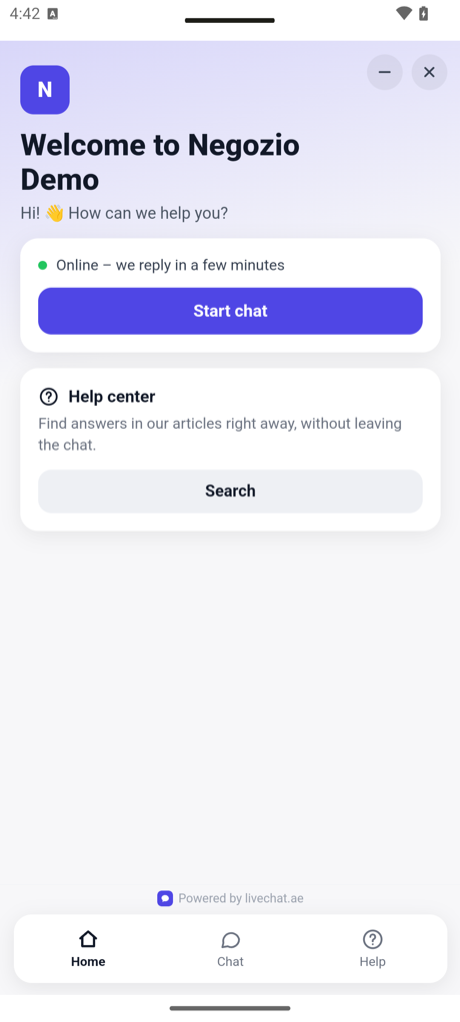
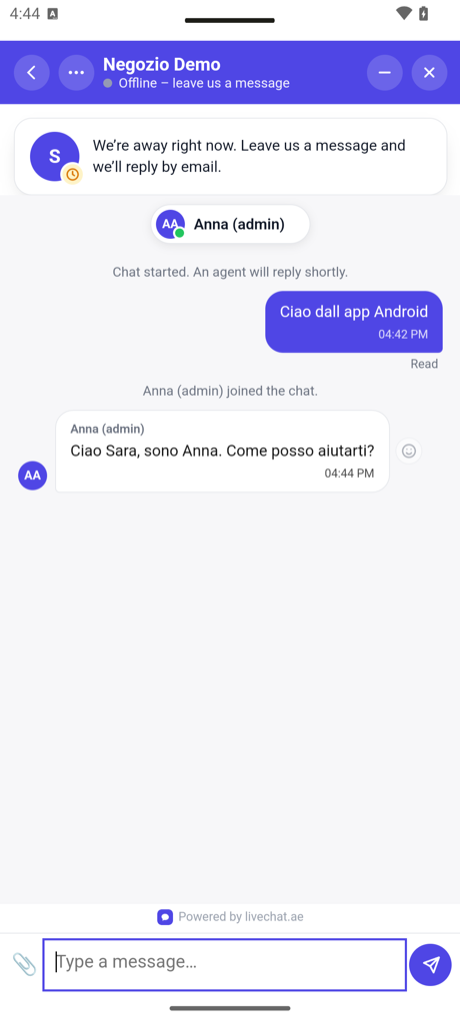
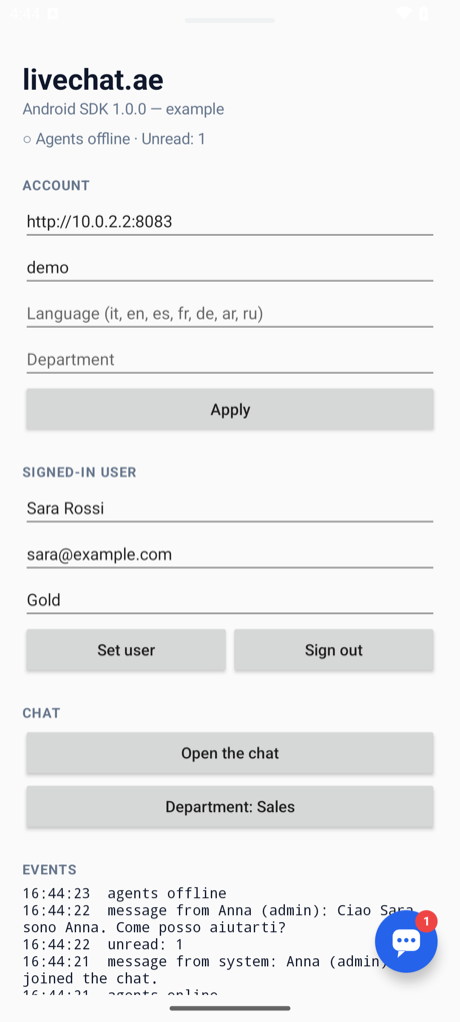
- Kotlin and Java, Android 7.0 (API 24) or later, phones and tablets
- One line to set up, one line to open the chat, a ready-made chat button with the unread badge
- Visitor name, email, custom fields and identity token from your app
- Events: new message, unread count, chat opened and closed, conversation started and ended, errors
- Push notifications when the app is closed, with Firebase Cloud Messaging, sent by your server through the chat.agent_message webhook
Requirements
- Android 7.0 (API 24) or later, with Android System WebView (or Chrome) up to date
compileSdk36 and Java 17 for building- A livechat.ae account and its widget key: the same
data-keyas in the website snippet, in Administration → Installation
Installation
The SDK is on JitPack. Add the repository in settings.gradle.kts:
dependencyResolutionManagement {
    repositories {
        google()
        mavenCentral()
        maven("https://jitpack.io")
    }
}
and the dependency in the build.gradle.kts of your app:
dependencies {
    implementation("com.github.gatehillsreg:livechat-android-sdk:1.0.0")
}
The SDK adds the INTERNET permission to your app. Its only dependency is androidx.webkit.
Quick start
Configure the SDK once, in Application.onCreate. The chat loads in the background, so messages and the unread count arrive even before the user opens it.
import ae.livechat.sdk.LiveChatAE

class MyApp : Application() {
    override fun onCreate() {
        super.onCreate()
        LiveChatAE.configure(this, key = "YOUR-WIDGET-KEY")
    }
}
Open the chat from anywhere:
LiveChatAE.present(activity)     // from one of your activities
LiveChatAE.present()             // or from the activity on screen
LiveChatAE.dismiss()             // close it from code
Or drop in the ready-made button, with the unread badge:
// 56×56 dp, uses the accent color of the theme (or set button.color)
val button = LiveChatAEButton(context)
layout.addView(button)

// Jetpack Compose
AndroidView(factory = { LiveChatAEButton(it) }, modifier = Modifier.padding(20.dp))
<ae.livechat.sdk.LiveChatAEButton
android:layout_width="wrap_content"
android:layout_height="wrap_content"
android:layout_gravity="bottom|end"
android:layout_margin="20dp" />The chat opens full screen, above the keyboard and between the system bars. The user closes it with the – button in its header or with the back button: the conversation goes on, and new messages keep arriving and are counted as unread.
In Java every method is static: LiveChatAE.configure(context, "YOUR-WIDGET-KEY"), LiveChatAE.present(activity).
Configuration
LiveChatAE.configure(
    context,
    key = "YOUR-WIDGET-KEY",
    language = "it",             // it, en, es, fr, de, ar, ru. Default: your account's language, then the device's
    department = "Sales",        // department for new chats. Default: the visitor chooses
)

LiveChatAE.setDepartment("Support")   // change it later, for the next chats
Calling configure again with different values reloads the chat.
The signed-in user
If your app knows who the user is, pass it on: the pre-chat form is filled in, and agents see who they are talking to.
LiveChatAE.setVisitor(name = "Sara Rossi", email = "sara@example.com")

// shown to agents next to the chat (up to 20 fields)
LiveChatAE.setCustomFields(mapOf("plan" to "Gold", "customerId" to "C-1042"))

// identity token signed by your server, passed to your remote (AI) agents
LiveChatAE.identify(tokenFromYourServer)
When the user signs out, forget them and their conversation on this device:
LiveChatAE.identify(null)
LiveChatAE.reset()
Events
Use a listener (every method is optional):
class ChatEvents : LiveChatAEListener {
    override fun onMessage(message: LiveChatAEMessage) {
        println("${message.sender} ${message.author}: ${message.text}")
    }
    override fun onUnreadCountChanged(count: Int) { badge.text = if (count > 0) "$count" else "" }
    override fun onError(error: LiveChatAEError) { Log.w("chat", error.toString()) }
}

LiveChatAE.addListener(events)       // and removeListener(events) when it goes away, e.g. in onDestroy
or lambdas:
LiveChatAE.onMessage = { message -> … }
LiveChatAE.onUnreadCountChange = { count -> … }
LiveChatAE.onPresent = { … }
LiveChatAE.onDismiss = { … }
LiveChatAE.onChatStarted = { chatId -> … }
LiveChatAE.onChatEnded = { chatId -> … }
LiveChatAE.onError = { error -> … }
Events arrive on the main thread. The current state is always there too: LiveChatAE.unreadCount, isPresented, agentsOnline, lastError.
| Event | When |
|---|---|
onMessage | A new message: from an agent, an AI agent or an automation (AGENT), from the visitor (VISITOR) or a notice (SYSTEM). It arrives also while the chat window is closed, as long as the app is in the foreground |
onUnreadCountChanged | Agent messages not seen yet. Kept when the app is closed and opened again |
onChatPresented / onChatDismissed | The chat window opened / closed |
onChatStarted | The visitor sent the first message, reopened a closed chat, or an agent invited them |
onChatEnded | The conversation was closed by the agent, the visitor or for inactivity |
onAgentsOnlineChanged | Agents came online or all went offline |
onError | InvalidKey, Network, Http, ConfigurationFailed, Disabled, ChatStartFailed, TooManyChats, NotConfigured |
Links and attachments
Links and attachments tapped in the chat open inside your app, in a Custom Tab of the browser. To open them in the browser (or in the app that handles them), or to handle them yourself:
LiveChatAE.linkHandling = LiveChatAELinkHandling.External
LiveChatAE.linkHandling = LiveChatAELinkHandling.Custom { uri -> /* your code */ }mailto:, tel: and other non-web links always go to the system. The user attaches photos and files with the system file picker: no permission is needed.
Push notifications
When the app is closed, the chat is not connected. To let the user know that an agent answered, your server sends a push notification with your own Firebase Cloud Messaging (or OneSignal…) credentials: livechat.ae tells your server when to send it and to which device.
- In the app, give the FCM registration token to the SDK, at launch and when it changes.
- In livechat.ae, open Administration → API & webhooks and add a webhook for Reply to the visitor (
chat.agent_message). - On your server, verify the signature and send the push when the visitor is not connected.
- Back in the app, open the chat when the user taps the notification.
FirebaseMessaging.getInstance().token.addOnSuccessListener { LiveChatAE.setPushToken(it) }

class MyMessagingService : FirebaseMessagingService() {
    override fun onNewToken(token: String) = LiveChatAE.setPushToken(token)
}
{
"event": "chat.agent_message",
"data": {
"chat": { "id": "93b9e3cf-…", "status": "active", "visitor": { "name": "Sara Rossi", "email": "sara@example.com" } },
"message": { "id": 1042, "text": "Your order ships today.", "author": "Anna", "createdAt": "2026-11-24T06:50:12Z" },
"visitor": { "online": false },
"push": { "platform": "android", "token": "fGx7…:APA91b…" }
}
}// Node.js, with firebase-admin
if (!data.visitor.online && data.push?.platform === 'android') {
await admin.messaging().send({
token: data.push.token,
notification: { title: data.message.author, body: data.message.text },
data: { livechatae: JSON.stringify({ chatId: data.chat.id }) }, // lets the SDK recognize the notification
android: { notification: { tag: data.chat.id } }
});
}push is present only when the chat runs in your app and the app registered the device. Put the livechatae key in the data of the message, as above.
With a notification message FCM shows it while the app is in the background, and the tap opens your launcher activity with the data in the intent extras:
override fun onCreate(savedInstanceState: Bundle?) {
    super.onCreate(savedInstanceState)
    …
    LiveChatAE.handleNotification(intent, this)    // false (and nothing happens) for your other intents
}

override fun onNewIntent(intent: Intent) {
    super.onNewIntent(intent)
    LiveChatAE.handleNotification(intent, this)
}
If you build the notification yourself in onMessageReceived, put remoteMessage.data in the extras of its intent. LiveChatAE.isLiveChatNotification(remoteMessage.data) tells you whether a message is about the chat, for example to skip the notification while the chat is on screen (LiveChatAE.isPresented).
Privacy and the manifest
- The conversation is kept on the device, in the web storage of the app, so that it survives app restarts.
LiveChatAE.reset()deletes it. - While the app is in the background the connection to livechat.ae is closed: for agents, the visitor has left. It opens again, and fetches what arrived meanwhile, when the app comes back.
- Only the chat page of your livechat.ae server can talk to the app: the bridge is limited to its origin.
How it works
The SDK shows the livechat.ae chat in a WebView (https://livechat.ae/sdk/chat?key=…), like the chat on your website, and talks to it through a small JavaScript bridge. So every setting and every new feature of the livechat.ae chat reaches your app without updating the SDK. The web view stays alive, invisible, while the chat window is closed: that is how messages and the unread count arrive at any time and the chat opens instantly.
The repository also contains an example app with every feature of the SDK, the tests (./gradlew :livechat:testDebugUnitTest) and the changelog. The SDK is open source, under the MIT license.